How to organise a virtual office your team can actually find things in
The short answer
Organise a virtual office by giving each kind of information one memorable home: files in a shared cabinet, lasting notices on a board, actionable requests in a tracked queue, current work in projects, and simple presence information for who is available. Keep the structure shallow and document it for new teammates.
In short
- Choose one home for each kind of information.
- Keep folders shallow and name them after the work.
- Separate lasting notices from requests that need action.
- Show availability without tracking people’s activity.
A physical office organises itself: the cabinet is over there, the noticeboard is by the door, and you can see who came in. Remote teams lose all of that and replace it with links. Organising a virtual office is mostly about giving those links a shape people can remember.
Give every kind of thing exactly one home
Most virtual-office confusion comes from duplicate homes: two drives, a board and a spreadsheet that all half-track the same work. Decide, once, where files live, where shared announcements live, where requests between people live, and where personal work lives.
Write the four answers down somewhere new joiners see in their first hour. That single note prevents more chaos than any tool choice.
Shallow folders beat clever ones
- Name folders after the work, not the department that produced it.
- Two levels deep is usually enough for a small team.
- Prefer one cabinet everyone can browse over private folders shared on request.
- Share files through links with an expiry rather than email attachments.
Keep a noticeboard, not a broadcast channel
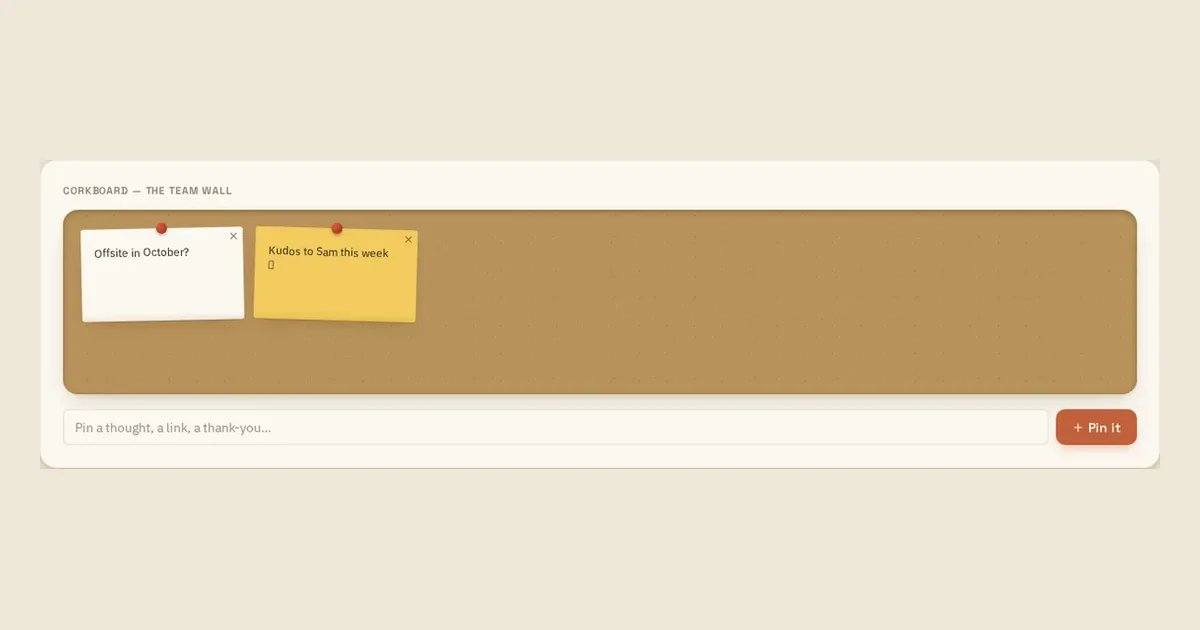
Chat scrolls; a board does not. A shared corkboard is the right place for the handful of things that should stay visible for a week: an offsite date, a policy change, a thank-you, a link everyone keeps losing.
Anything that must be seen once and acted on is a request, not a pin — and it should carry a status so nobody has to ask whether it happened.
Make presence visible without surveillance
A remote team does not need activity tracking; it needs to know who is around this morning. A simple who's-in indicator answers the question that otherwise becomes three messages.
The Loveley Desk layout
The desk gives each of these a physical shape: a file cabinet for documents, a corkboard for the shared wall, Team Up for requests with a status, a who's-in strip for presence, and projects for work that outgrows the desk surface. See the full list on the features page, or open the demo desk and rearrange it yourself.
Example: arranging a small virtual studio
This sample layout shows how five teammates could divide information without duplicating it.
- Client files live in the project’s file area; the general cabinet holds company-wide documents.
- The corkboard carries the offsite date and a frequently used reference link for the week.
- A request for finance to approve a supplier is tracked as an open request, not posted as a notice.
- Each client engagement has a project containing its tasks, reminders, journal entries, tools, and ledger.
Put the workflow into practice
Common questions
What belongs in a virtual office?
A useful virtual office gives clear homes to active tasks, dated reminders, files, lasting notices, actionable requests, project context, and basic team availability.
What belongs on a virtual-office noticeboard?
Use it for information that should stay visible for several days, such as an announcement, shared reference, event date, or team recognition. Requests needing action should go into a tracked queue instead.
How deep should a small team’s folder structure be?
Start with one or two levels and name folders after recognizable work. Add depth only when people can predict where a file belongs without asking.
Sources and further reading
- GitLab Handbook: Asynchronous communication — A practical reference for documenting context and working across time zones.
- Microsoft Support: Organize documents and sites — Further reading on organizing and sharing documents in a collaborative workspace.
Read next
- Five remote collaboration rituals that survive a busy quarter
- A small-team workflow that doesn't need a dashboard
- Everything on the Loveley Desk — the full feature list.
- Pricing — what the free Solo Desk includes, and what a team adds.
- Loveley Desk vs Trello — a side-by-side comparison.
Try the desk
Tasks, sticky reminders, files, a corkboard and a daily journal in one calm place. Solo Desk is free, and the demo needs no account.